


Home Networking
We just purchased a second computer and now we'd like to share the printer and Internet connection between them. How do I set up a simple home network? |
Setting up Your Home Network
As society and technology change, it's becoming common for homes to have more than one computer. When an existing computer is a few years old, parents will often take advantage of today's lower prices, purchase a new computer, and pass the old one down to the kids.
Suddenly, there's a need for a home network, so all computers in the house can share an files, printers and an Internet connection.
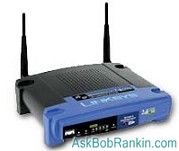
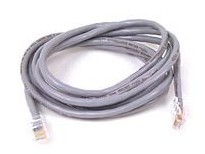
Fortunately, setting up a basic home network is not rocket science. To start, you'll need a router which becomes the central point of your network. Most office and electronics stores offer home networking kits with a router, ethernet (network) adapters and CAT-5 networking cable.
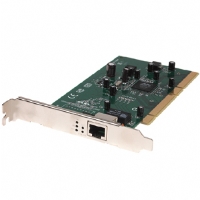
If your computer was assembled in the past five years, it probably already has an ethernet adapter. Check the back of the system unit for a port that looks like a telephone jack, but slightly bigger.
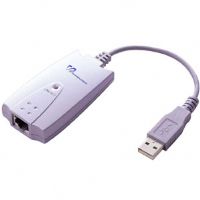
If you don't have an ethernet adapter, you can purchase one (about $20) and install it yourself. You can also use a special ethernet adapter that plugs into a USB port, if you can't stand the thought of opening your system unit to install an ethernet adapter.
Wired or Wireless Networking?
You'll need to connect each of your computers to the router with a cable, or go wireless. If you want to use wireless connections, you'll need a wireless router and a wireless adapter for each computer. Most laptops have a wireless adapter built in, most desktop models do not. If you need a wireless adapter, you can purchase one that installs inside the system unit, or get a USB-style adapter.
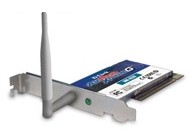
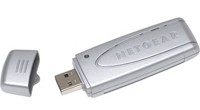
Having a wireless network eliminates the need to string unsightly cables all around the house, but it can also create a security risk. Wireless networks are often configured by default to allow access to any computer that attempts to connect. So an Evil Hacker driving by with a laptop (or even your neighbor) might be able to tap into your Internet connection or poke around your hard disk.
Fortunately, wireless security encryption is easy to set up. See my article Wireless Security for step-by-step instructions.
Network Configuration
Whether the network signals travel through wires or through the air, network resources must still be shared so that other computers can access them. If you are running Windows XP or MacOS X, all you have to do is connect your computers and high-speed modem to the router, and Internet connection sharing should just work like magic. If not, restart the cable modem, router, and the computers (in that order) and see if that does the trick. If you can't access the Internet from one or more computers on the network, consult the manual that came with your router.
One nice side benefit of having a router is that they have firewalls built in to the hardware. Firewalls protect you by hiding your computers from network attacks, but still allow you to surf the web and handle email. So after installing a router, you can turn OFF the Windows firewall and any other software-based firewalls you may have running.
Sharing Files and Printers
Sharing files and printers on a Windows network is also pretty painless. To share a printer, go into the Printers section of the Control Panel, right-click the icon for the printer that needs to be shared, and choose Sharing from the resulting menu. By assigning a name to the shared printer, the owner allows other
computers on the network to access the printer by browsing using their Network Neighborhood (or My Network Places) icons. Access can be restricted to only some computers or users through the use of the Security or Permissions options on the Sharing screen.
The same concept applies for shared file and folders on a network. For example, if you want to share a collection of MP3 files on a home network, just browse to the folder using the My Computer icon, right-click the folder name and choose Sharing. After assigning a name to the shared resource and setting Permissions other computers on the network can access that resource via Network Neighborhood or My Network Places.


This article was posted by Bob Rankin on 12 Jan 2006
| For Fun: Buy Bob a Snickers. |
 |
Prev Article: Inkjet Cartridges - Replace or Refill? |

The Top Twenty |
Next Article: Which PDA Should I Buy? |
 |
Post your Comments, Questions or Suggestions
|
Free Tech Support -- Ask Bob Rankin Subscribe to AskBobRankin Updates: Free Newsletter Copyright © 2005 - Bob Rankin - All Rights Reserved About Us Privacy Policy RSS/XML |
Article information: AskBobRankin -- Home Networking (Posted: 12 Jan 2006)
Source: https://askbobrankin.com/home_networking.html
Copyright © 2005 - Bob Rankin - All Rights Reserved

Most recent comments on "Home Networking"
Posted by:

Lyndal PN
12 Jan 2006
Perfect timing Bob! Just bought a laptop as well as our desktop and as my husband and I are both completing a Masters degree this year we will be fighting over the broadband connection!! Off to the shops to get the bits...thanks for making networking so non threatening!
Lyndal
Posted by:

Rob
13 Jan 2006
I've got the networking part down, but the printer sharing is being a real pain. The old computer is hosting the internet, while the second computer is a laptop conected via wireless. File sharing works fine, but the two USB HP Printers hosted on Windows ME does not allow sharing which I think is due to the new computer being XP Home, and requiring different drivers than the host computer of ME. I've tried installing the drivers directly on the laptop, and changing the port to the host ME computer, but the laptop still can't print.
My next step, unless someone has a better idea, is to test this with a different host computer that has the XP operating system, and then seeing if the remote laptop can actually print to the shared printers. Of course, this is a lot to do simply for a test, but if the test works, then simply replacing the old ME computer with one of those 299.00 Dell computers seems to be the best answer over upgrading the OS on the ME machine for a computer that is many years old.
Unless a printer has an RJ45, I really hate working with them. I've not seen an option in ME to install additional drivers to support the XP operating system, but ME to myself, is like a printer without an RJ45. :-(
Posted by:

John
13 Jan 2006
I have a router and wired/wireless ethernet adapters with all of my PC's working. But... sharing my HP printer required the printer software be installed on every machine that uses it. Tourbus riders might run into that roadbump.
I have tried to share "My Documents" and subfolders between XP machines with limited success. With multiple users on each XP machine, I can sometimes see the shared folders but none of the contents. And I cannot put anything into those folders without a write permission error. I end up copying files via a USB memory stick and saving myself the bother. WinXP firewalls are off and it shouldn't be so difficult to share files on my own home network.
EDITOR'S NOTE: I've also noticed some flaky behavior in Windows XP networking. Works most of the time, which is sort of annoying!
Posted by:

Carol
14 Jan 2006
I used to have a home network with 2 WinME pcs and everything worked OK, no problem sharing files. But since I got a new Pc with WinXP I couldn't get through to the WinME. I was getting crazy trying to find out why, until I found out it was due to the Norton Internet Security on WinXP, so I turned it OFF and then it worked fine again. So that is what I do now: when I want to access the shares on the other pc I turn it OFF and when I'm done I turn it ON again.
I just wanted to let Bus Riders know about this in case someone has the same problem and can't find a solution. Thank you for all Bob and
best wishes from the Canary Islands.
EDITOR'S NOTE: Yet another example of a software firewall causing problems...
Posted by:

John Shorkey
06 Aug 2007
Any problem networking a desktop WIN XP home wireless with a win98 laptop?
EDITOR'S NOTE: In theory, no. But it seems that Windows networking is implemented with twine, bubblegum and magic spells. Your mileage may vary...
Posted by:

Mark Nightingale
10 Oct 2007
I followed your directions precisely to set up a wireless network printer.... but everytime I run Network Connections Wizard.... I go thru it all, but at the end, it says it could not create the network connection. What could it be from? Mcaffee?
EDITOR'S NOTE: Possibly... you'll never know until you try without it.
Posted by:

graham
03 Nov 2007
does a computer need a built in modem if i have a wireless router
EDITOR'S NOTE: You won't need a modem, but you WILL need a wireless adapter, either built-in, or USB pluggable.
Posted by:

Marshall
02 Dec 2007
I have two desktops and one laptop. The two desktops are wired, and the laptop is wireless. The wired computers share files, printers, etc. fine. The wired computers can not see the wireless, and vice versa the wireless can not see the wired. The wireless accesses the router and the internet fine, but will not see the home network even when searching for it with the network wizard. Any ideas are appreciated.
EDITOR'S NOTE: Are the workgroup names all the same?
Posted by:

Michael Redmond
15 Feb 2008
I have a Linksys wireless system that works fine for internet access. I have a desktop attached to the router and a an Epson printer. The desktop router is connected to a Cox cable modem. I have tried all of the recommended procedures to reach the printer from my laptop and no success. Windows wireless network setup, printer sharing, nothing. I got so far as having a name assigned to the printer (Printer3) by the laptop that also shows up on the desktop but I can't reach it. It doesn't show up on the laptops "Printers and Faxes" sheet.
Suggestions?
Posted by:

Bob DiAsio
19 Oct 2008
We currently have a desktop with Windows XP Home and an HP psc 2410xi photosmart all-in-one printer. We recently bought a laptop with Windows Vista and connected to a Linksys router and the Cox cable modem. We installed the printer software on the laptop and tried printing which didn't work so we contacted HP who told us that Vista doesn't recognize the printer we have. We want to share the printer with the laptop and followed your instructions but ran into a problem. A window appeared that said MS blocked the sharing of the printer for security and we would have to run NETWORK WIZARD in order to share the printer. Network Wizard says we can share the internet, set up a firewall, share files & folders, and share the printer. We only want to share the printer and were unsure about running Network Wizard so we did nothing. Does Network Wizard allow us to select share the printer only and not anything else? If we cannot print using network sharing do you now of any other way we can print from the laptop without purchasing a new printer?
EDITOR'S NOTE: Yes, the network wizard will let you share printers and nothing else. But if the printer software is not Vista compatible, you may still run into troubles.
Posted by:

Zdzislaw
02 Nov 2008
We have two desktops Win XP pro in home network. Everything work fine except email.Since we have only one email address, very often appear IP conflict between machines which cause problems. How we can fix this but still keeping one address?
EDITOR'S NOTE: What happens when you get this "IP conflict"?
Posted by:

Ron
15 Feb 2009
I have 3 computers. 2 are PC's & one is a Mac. I have 1 router with 4 ports. When the 2 PC's are plugged into the router no problem, but, as soon as I plug in the Mac to the router, the PC's start losing connections, for example, "connection timeout", slow or no page loading. Can you advise?
P.S. I use a D-Link EBR-2310 router.
EDITOR'S NOTE: My advice would be to unplug the Mac! ;-) It's either something on the Mac burning up a lot of bandwidth (network traffic) or the router is defective.
Posted by:

Jen
30 Aug 2009
I have all of the above on my computer, but there is no network that I know of. Is theres something more specific that I need to set up? I have a wireless laptop and a desktop with a printer attached, but I want the laptop to print to the desktop. I tried sharing the printer, but it won't show up on the laptop as a possible printer. Suggestions?
EDITOR'S NOTE: If your laptop can connect to the Internet, then you have a network. Did you make sure both computers are using the same network name on both computers? Also see http://askbobrankin.com/sharing_a_printer.html
Posted by:

Leigh Ann Woody
03 Sep 2009
Hi!
I have hooked up routers for friends for their laptops but I'm having trouble with connecting my 2 desktops. My main computer is Windows VISTA and it's connected to a cable modem and has the lynsky router. The second Desktop runs XP and I have an ethernet cable running from the router to it. I renamed the workgroups to the same name. I can view the VISTA computer and access the public file, and access the printer, but cannot access the internet. The main computer cannot see the XP one at all. What am I doing wrong? I have tried everything I can think of.
Thanks for your help.
Posted by:

Dave
06 Dec 2009
I have an older laptop,a friend setup a Linkskeys
router,I can get on the internet fine on the laptop
but cannot print from it.I made it so my desk top
will not be greedy and it will share the printer
but nothing still,It's a Hp all in one C 4180 Printer and a Dell desktop,older also gx 240 Octiplex, One gig Ram Xp pro I'm a newbie at all this-if it was wood I could build a new one but circuts and all that are greek to me
Posted by:

anita
29 Sep 2011
Thank you soo much...I just got a new computer then my router wouldn't work, I replaced the router...then my dang laptops wouldn't print...I found this site followed your directions and poof now it works!
Posted by:

Jay
19 Oct 2011
I have a wired home network which uses a Linksys NR041 "network everywhere" router. I am running Windows XP on three of the four computers that are connected to it, the other computer runs Vista. About a year ago one of the computers on the network stopped appearing in the list of computers in the work group in My Network Places. I have tried rerunning the network setup wizard on all of the computers and have changed the work group name on all of the computers to the same name. Nothing I have done causes the name of that one computer to appear in the list. I can access that computer from the other XP machines by using the 'add network place' function, (I have not found how to do that on the Vista machine). Can you provide any guidance as to what I should be looking at on the machine that does not show up in the list to allow it to do so?
EDITOR'S NOTE: My best guess is that there may be a firewall or anti-virus program on one of the machines that's causing the trouble. You can try temporarily disabling one or both, and see if that fixes the problem.
Posted by:

Jay
19 Oct 2011
Thank you for your suggestions.
Before going further some history and what is currently in my network may be beneficial. Originally I had two desktops, one is an HP Pavilion (the one that does not appear in the work-group list), the other was a Compaq Presario. The Presario died and was replaced with a Dell GX260. I have from time to time connected various laptops to the network. Currently I have two laptops (one an HP running Vista and a Dell running XP) that are intermittently connected to the network. The problem of not being able to see the Pavilion ion the work-group list started when the Presario was in the network and has continued with the GX260 and with any laptops that I have connected to the network since that time.
All of the XP machines (the two desktops and one laptop) are running the same anti-virus (Avast! Free v6.0.189). The Vista machine is running Trend Micro anti-virus. Since three machines are running the same anti-virus and two of them appear i the list when they are connected to the network it seems like a long shot that the anti-virus would be affecting only one. Never-the-less I disabled it on the Pavilion, there was no change in the list of computers in the work-group.
With regard to the firewall: I found that both of the laptops have the firewall enabled, as I suspected they would, they both appear in the work-group list. I am fairly certain that when I installed the GX260 (which appears in the work-group list), I disabled the firewall, however today I found that it was turned on, so I turned it off. There was no change in the computers that appear in the work-group list after doing so. I also thought that the firewall was disabled on the Pavilion, but found that it was enabled, so I disabled it. Again, there was no change in the computers listed in the work-group. I then rebooted the Pavilion and verified that the windows firewall remained off. The list of computers in the work-group remained the same.
Do you have any further suggestions as to where I might find what is causing this problem?
EDITOR'S NOTE: You did everything I would have tried to isolate the problem. Sorry, I'm stumped on this one.